Run a show in WareCue
Outputs, scenes, the cue stack, assets, timers, packaging, A/B failover and remote control. Written for the technician doing the install. For Windows and macOS.
Multi-output show control
WareCue plays scenes — video, images, web pages, text and timers — to several outputs at once, and lets an operator cue and take them in order while a show runs. Each output gets its own content, not a copy of the main one.
Two kinds of people use it: operators who build and run shows in the app, and technicians who drive it from a stack over OSC, TCP, WebSocket, HTTP, MIDI or a Stream Deck. This guide covers both.
Install & licence
- Download & install. Get the macOS or Windows build from the download page, install it, and open it.
- Licence. WareCue starts in trial — full capability, no time limit, with a watermark across each output. To licence it, open Settings → Licence and paste your signed key. It is verified on the machine, with no network required.
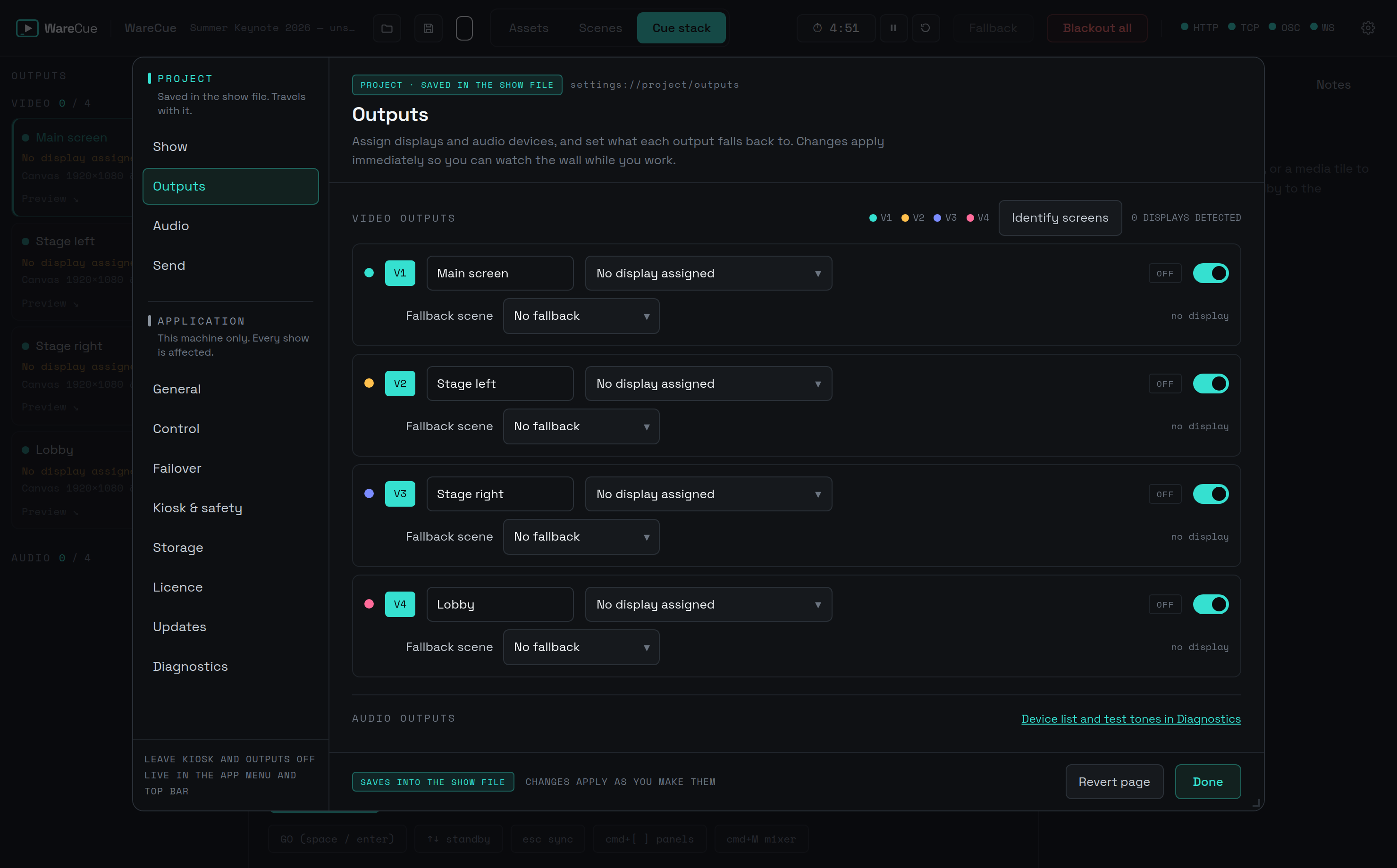
- First launch. Open Settings → Outputs and assign your displays and any audio devices. Changes apply immediately, so you can watch the wall as you set up.
- Updates. Open Settings → Updates to check against the download feed. WareCue never restarts on its own — a restart installs a pending download.
How the pieces fit
A WareCue show is built from four things. Scenes are the content. Outputs are where content lands. The cue stack is the ordered list you run, and each GO takes a cue's scenes onto the outputs. Master controls, timers and the audio buses sit across the whole show.
Run a show
Build and run a show in five moves:
- Set up outputs. In Settings → Outputs, assign each display to an output (V1–V4) and, if needed, an audio device. Set a fallback scene per output for safety.
- Build scenes. Add scenes and put content on them — media, a web page, text, a colour or a timer — and pick a transition.
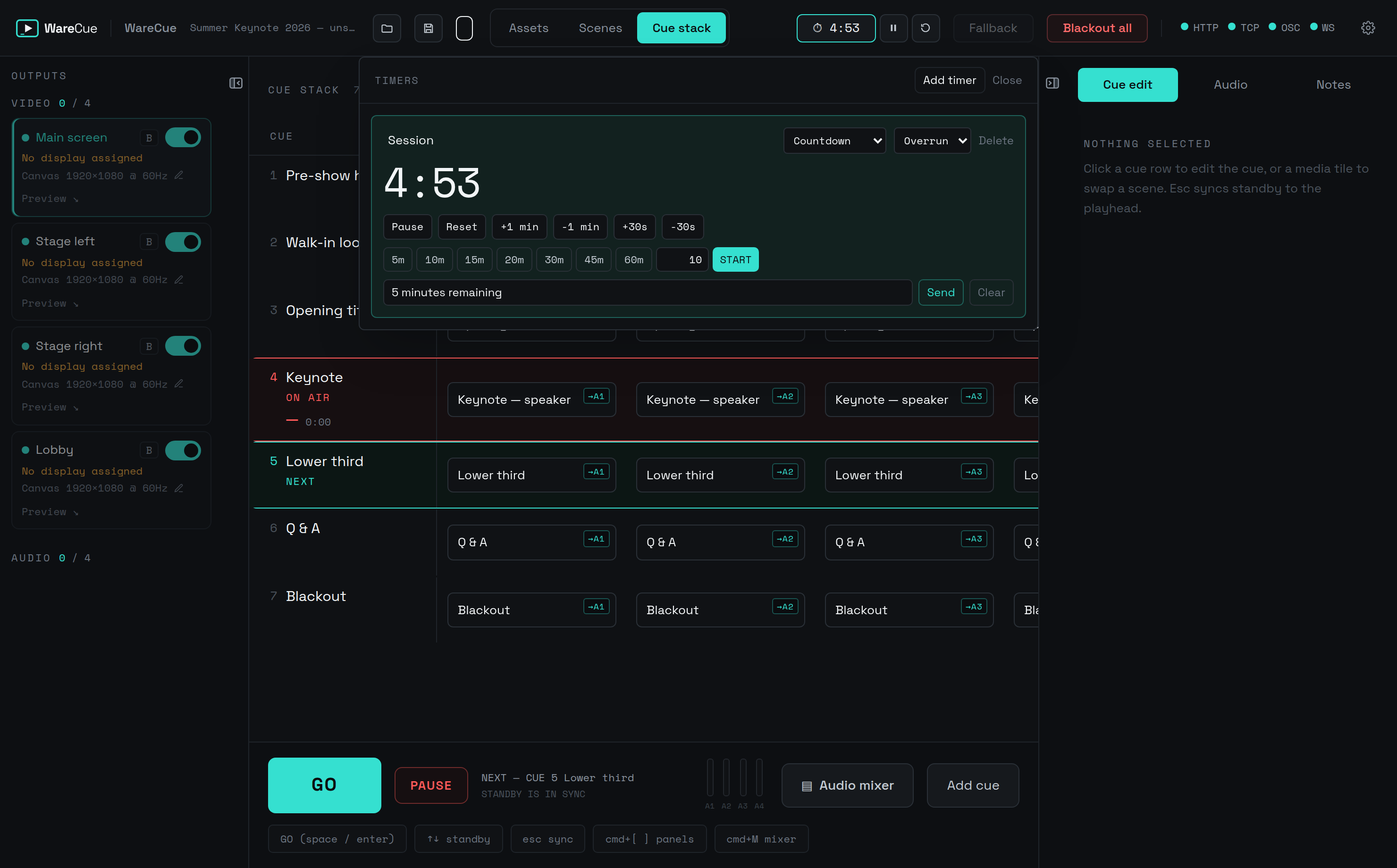
- Build the cue list. The cue stack is a grid: each cue sets which scene goes to which output when you take it. Number the cues; disable any cue you want GO to skip.
- Run it with GO. The armed cue is the standby; press GO (Enter or Space) to take it and advance. Move the armed cue with the arrow keys, or press Esc to re-sync standby to what is on air.
- Stay safe. B toggles master blackout; Master → Fallback takes each output's fallback scene — a one-key recovery.
Scenes
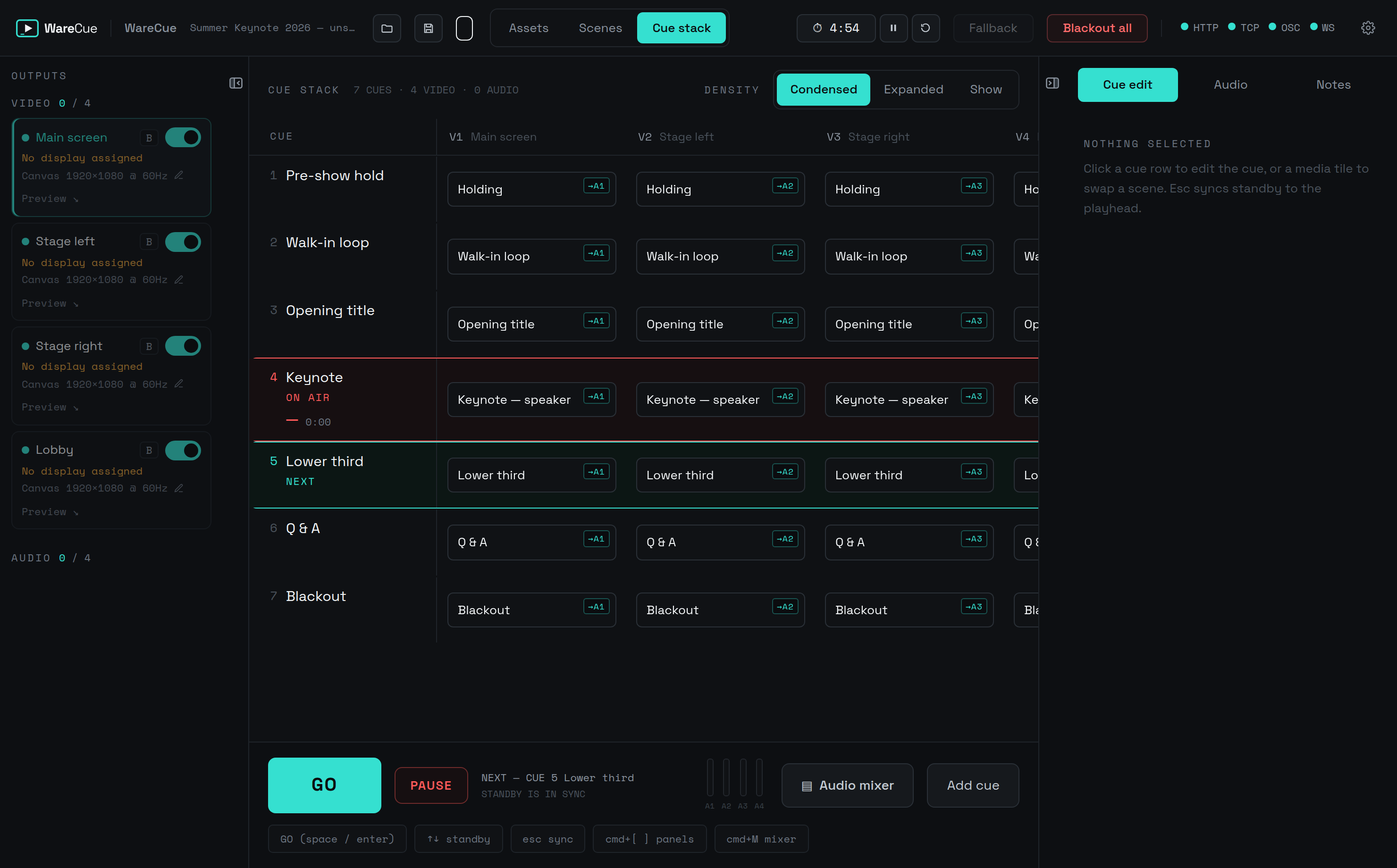
A scene is one look an output can show. Each scene runs in one of two modes.
Layers — stack content: a background video, a logo, lower-third text, a timer. Add layers of any type (image, video, audio, colour, text, timer, plus capture and web), reorder them, and use Transform scene to size and position layers across outputs at once.
Slideshow — a self-advancing playlist. Set the image duration, how video advances (on end or a fixed duration), loop and shuffle, and the transition between items.
Trimming media — set in / out points so only the part you want plays. Trims are stored as variants, so the same file can appear trimmed different ways in different scenes without re-importing.
A scene's follow decides what happens after it is taken:
- Hold
- Stay on this scene until the next take.
- Follow
- Advance automatically when the media ends.
- Follow +Ns
- Advance after a set number of seconds.
- Wait for trigger
- Hold until an incoming trigger fires.
Audio — each scene (and each cue cell) has a route: send its audio to a bus (A1–A4), None, or Follow the video. Set a per-asset gain so clips sit together; WareCue measures each file's loudness (LUFS) on import, so you can normalise the library to one target and nothing jumps in level mid-show.
Assets & the media library
Everything you put on screen starts as an asset in the media library.
Add assets — import video, image and audio files (each is scanned for size, duration, codec and loudness); add a capture input (a capture card / HDMI, matched by fingerprint so it re-binds after a reboot); or add a web page by URL, with transparent background, interactive mode, reload-on-take and permission controls. The five kinds are video, image, audio, capture and web.
Organise — group assets into collections and tag them. The global bank holds assets outside any one show — logos, stings, holding loops — reused across every show on the machine. A second trim or gain of the same file is a variant.
Preview & health — play an asset in the library before you use it (preview audio is muted by default). If a file moves or a drive is absent, the asset is flagged Missing and the show still loads — collect or re-link to fix it.
Timers
Run stage clocks and presenter messages, on a screen or over the content.
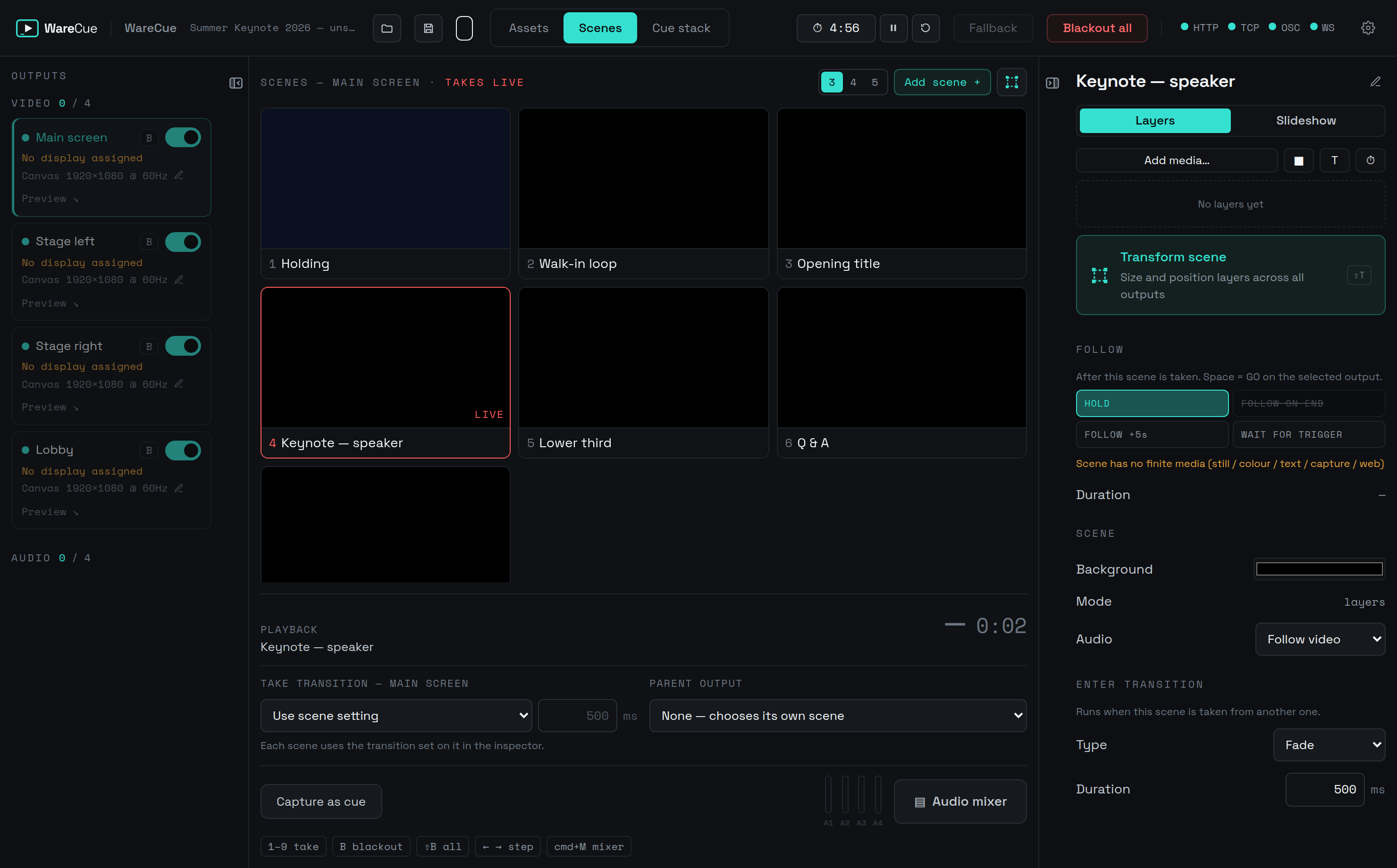
- Add a timer (countdown or count-up) and set its duration.
- Adjust on the fly with +/− buttons, or set an absolute value (5m–60m).
- Send a presenter message alongside the timer, and clear it when done.
- Overlay a timer on an output (position and size) so presenters see it on screen.
Start, pause, reset, set, adjust and message are all drivable remotely, so a Stream Deck can run the stage clock.
The cue stack in depth
Beyond GO and standby, the stack has tools for building and reading a long show.
Colour-code cues — give a cue one of eight colours as a bar (a stripe down the row) or a row tint. Colour a song, an act or a VT run so the operator finds it at a glance.
Notes on cues — add a note to a cue (a standby call, a caption, a reminder) that shows on the stack while you run.
Follow another output — a cue cell can follow another output instead of taking its own scene. Point the side screens at the main screen and they mirror it; on the cue where they should break away, give them their own scene. Side screens echo the main output and take their own content when needed, without duplicating media across every column.
Also on the stack — disable a cue so GO skips it; set a jump to loop or branch the running order; add a pre-wait before a cue fires; and Capture as cue to snapshot the current live look into a new cue.
Packaging a show for another machine
Move a whole show — media included — between machines:
- Collect media
- File → Collect Media Into Show Folder copies any files that live outside the show folder in next to the show file, so the show and its media travel together.
- Package project
- File → Export → Package Project copies everything into one package folder (the folder is the package; a zip is optional) ready to drop onto another machine.
Before copying, WareCue flags missing files, capture / web sources that need setting up on the destination, and global-bank assets. Copying runs in the background, so the control window and playback stay live. This is also how you keep an A/B pair on the same show.
A/B machine failover
For high-stakes shows, run two machines and switch between them if one fails. A/B failover is included with Master — every Master licence carries two activations.
- Two machines, one account. Both sign in on the same licensed account.
- Pair them. At the rack, the standby machine asks the front-of-house machine to pair — pick it from the discovered list or type its IP. Front of house approves, or types the standby's pairing code. A heartbeat keeps the link alive; roles show as active / standby.
- Takeover is manual, and the cut is external. WareCue coordinates the takeover; the screens are switched by your AB switcher, a switcher input or a cable — WareCue does not re-route the outputs itself.
- Keep both on the same show. Load the same show file on both — use Collect / Package to copy it across before doors.
Don't confuse this with Master → Fallback: that is a one-key, same-machine safety that takes each output's fallback scene. A/B failover is a whole second machine taking over.
Remote control & Companion
WareCue takes control from the rest of your stack, and sends to it.
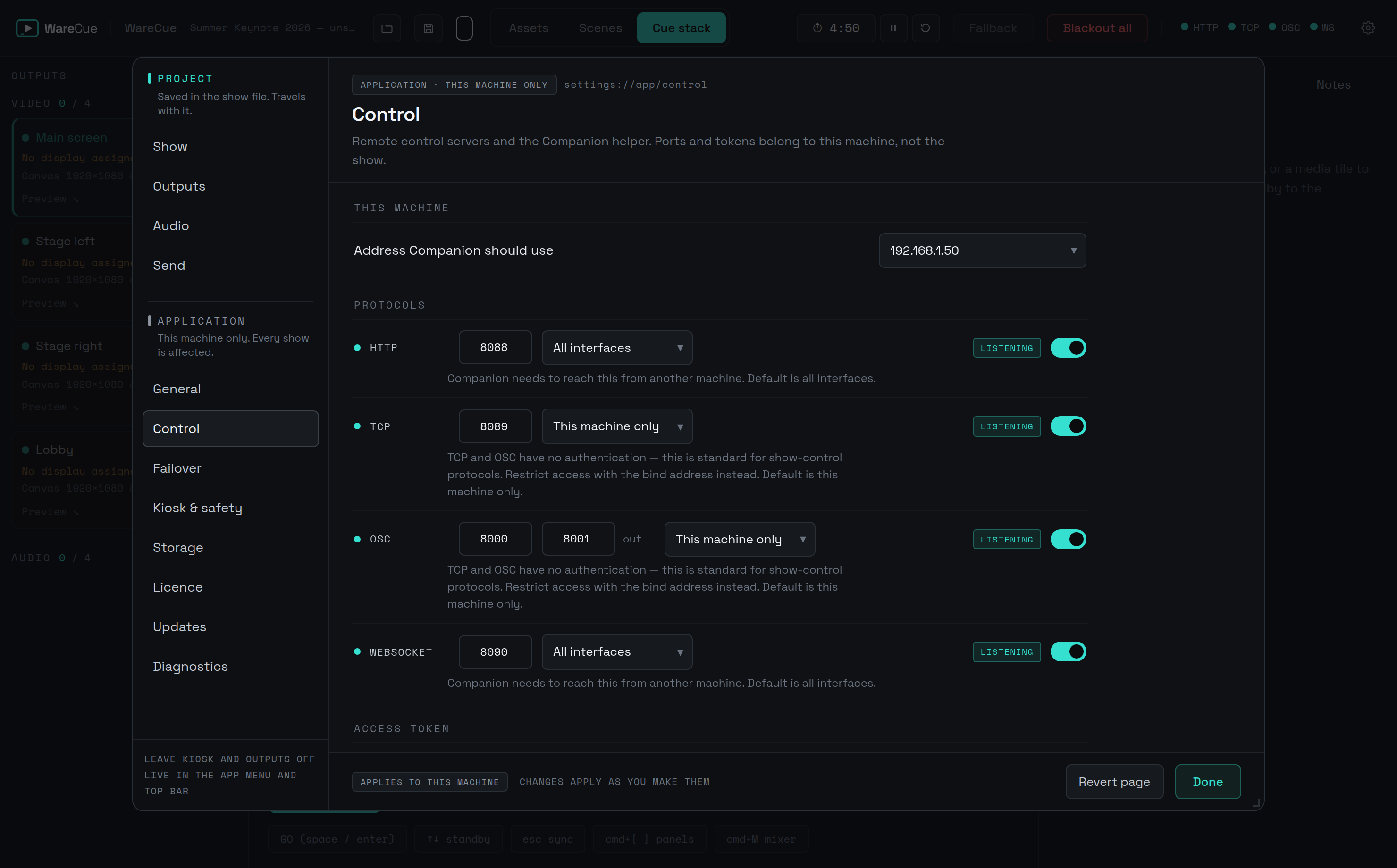
- Enable the control servers. In Settings → Control, turn on remote control. WareCue exposes HTTP (8088), a WebSocket (8090), plus TCP and OSC. Ports and an optional auth token belong to the machine, not the show — set a token on any untrusted network.
- What you can drive. Take scenes on outputs, next / previous, blackout, transport; the cue stack (GO, arm standby, move standby, sync); master (blackout, fallback, scene, outputs off); audio test tone; and timers (start / pause / reset, set, adjust, message).
- WebSocket is the rich one. On port 8090 a single connection carries commands and live state feedback — what is on air, the standby and on-air cue, timer state — which keeps button feedback in sync.
- Bitfocus Companion. Install the WareCue Companion module (GO / standby, cues, scenes, timers, with live button feedback) and point it at the machine's IP and port 8090.
Reference
Keyboard shortcuts (operator)
- Enter / Space
- GO — take the standby cue and advance.
- ↑ / ↓
- Move the standby (armed) cue up / down.
- Esc
- Clear selection, or sync standby to the on-air cue.
- B
- Master blackout (toggle).
- Delete / Backspace
- Delete the selected cue or cell.
Settings map
- Project
- Show, Outputs, Audio, Send — saved in the show file.
- Application
- General, Control, Failover, Kiosk & safety, Storage, Licence, Updates, Diagnostics — this machine only.